


General settings
The General settings section allows users to enter company data, such as the company name and logos, and configure e-Logos features.
Once the changes have been made, it is important to click Apply changes.
Company details
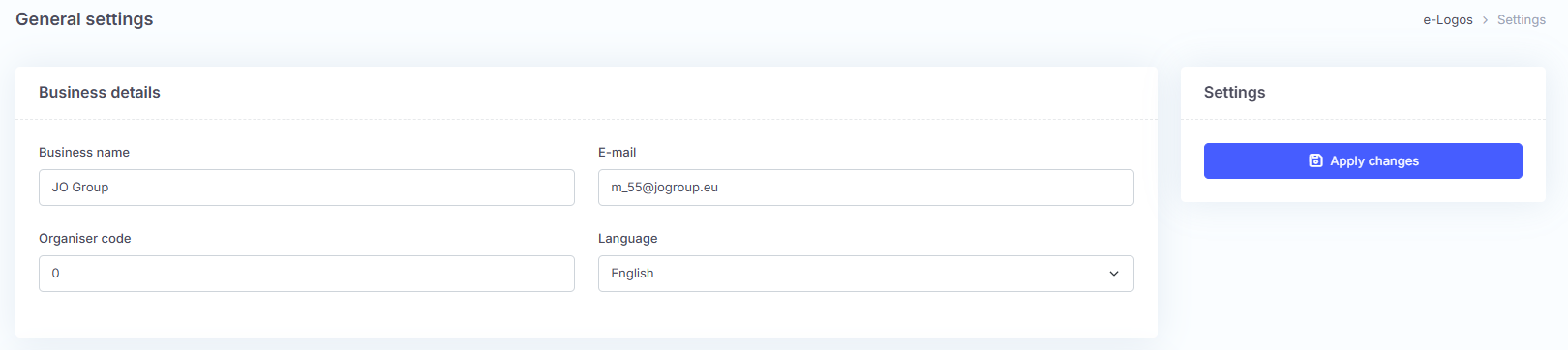
In this section, users can enter the company name, email address, organizer code, and platform language. The “Company name” and “Email” fields will be pre-filled using the data entered when purchasing e-Logos from the shop.
The selected language determines the interface of the administration panel.
e-Logos features
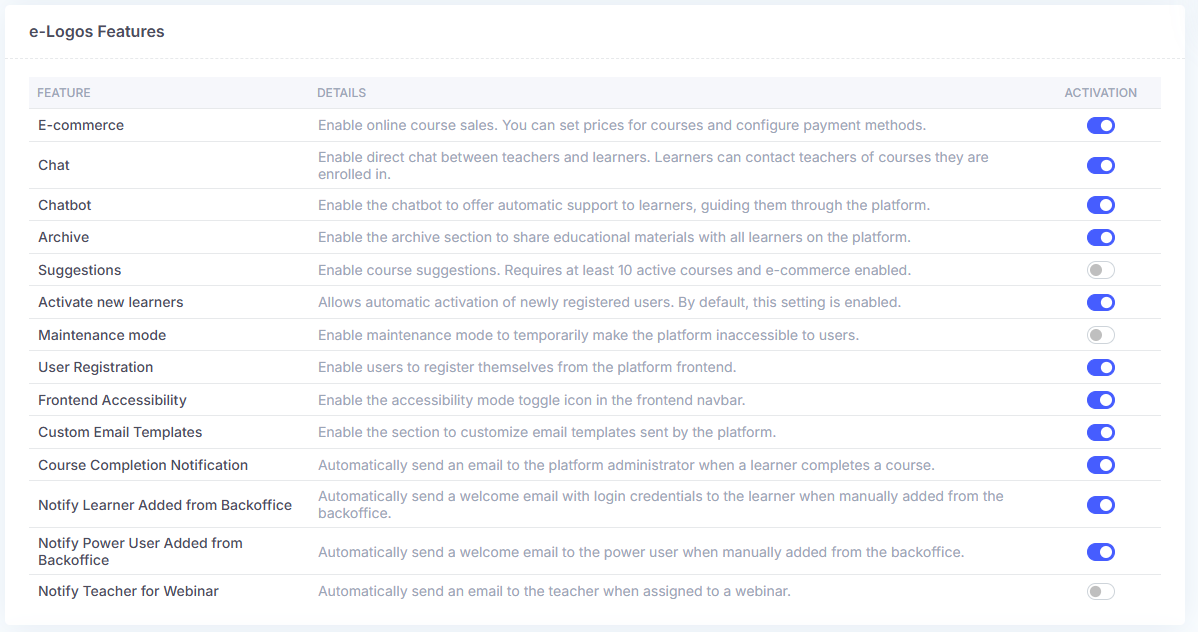
In this section, users can enable or disable the main features of the e-Logos platform using simple switches. The available options are:
- E-commerce: enables the online store for selling courses;
- Chat: enables chat between learners and instructors. It is visible only for the courses in which users are enrolled. Conversations remain saved even if the feature is disabled;
- Chatbot: enables a virtual assistant to support learners. The chatbot helps them navigate the platform, update their profile, and download their certificate. Learners will not receive any suggestions about the educational materials;
- Archive: enables a section for sharing general educational materials. It supports PDF, JPG, PNG, MP4, MP3, DOCX, PPTX, XLSX, TXT, and ZIP files;
- Course suggestions: shows similar courses in the My courses section after completion and on the product page. Available only when e-commerce is enabled and there are at least 10 active courses with video, PDF, or SCORM modules;
- Activate new learners: automatically activates newly registered users, both individually and through import. This option is enabled by default;
- Maintenance mode: makes the platform temporarily inaccessible to users;
- User registration: allows users to hide the Register button on the front-end. If disabled, learners will only be able to log in, so the administrator will need to enroll or import them;
- Front-end accessibility: if enabled, learners will be able to activate accessibility mode on the front-end to make platform navigation easier;
- Custom email templates: if enabled, users can customize all communications that the platform sends to learners, instructors, and managers. Otherwise, standard templates produced by e-Logos will be used. Click here to find out how to edit the templates.
Logo and favicon
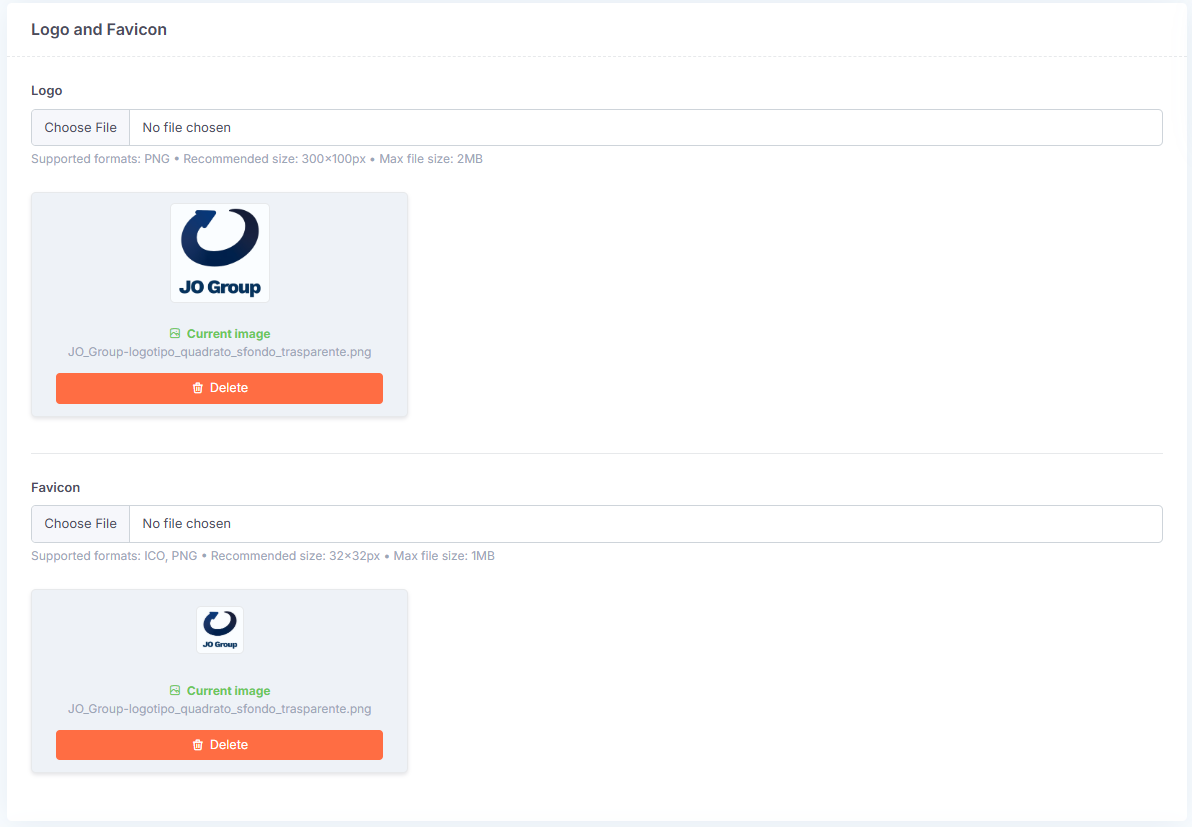
This section allows users to upload the company logo to be displayed on the platform. Files in .png format are supported. The logo can be removed by clicking Delete.
The uploaded logo will also be used by default in all automatic email communications sent to learners.
Users can also upload a favicon in .png or .ico format. A favicon is a small image that identifies the website and appears in the browser tab.
Internal messages

This feature allows users to display an informational banner to power users, such as Managers, Instructors, and Speakers, in all backend sections.
It is useful for reporting maintenance activities, urgent communications, or operational messages. Click Add to configure a new message.
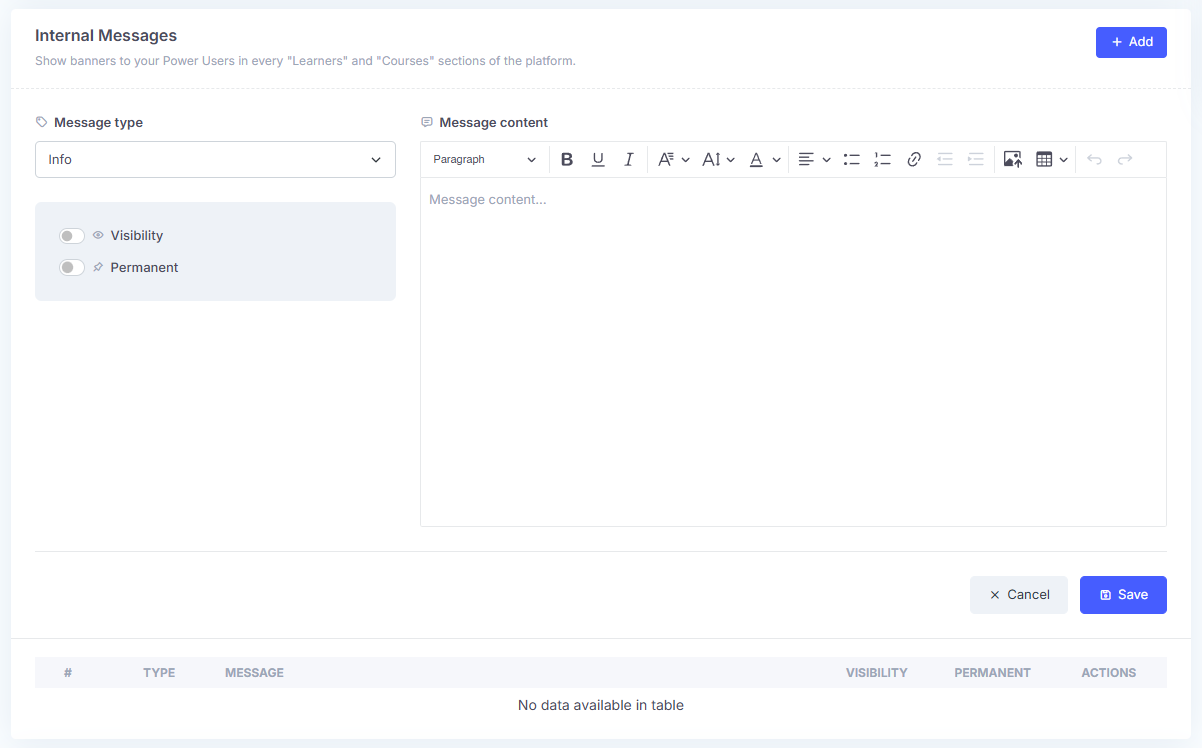
In the “Message type” field, users can choose from:
- Info: blue, for informational messages
- Warning: orange, for important notices
- Alert: red, for critical alerts
The selection determines the icon and color of the displayed banner.
The available options are:
- Visibility: if enabled, makes the message visible to power users.
- Permanent: if enabled, the message cannot be deleted by users. If disabled, power users can click the “x” to close it.
After writing the message content and configuring the settings, click Save. The message will be added to the list and can be edited at any time.
Electronic invoice – Transmitter
In this section, users must enter the sender’s details, meaning the person or software that physically sends the electronic invoice to the Exchange System (SDI).
- Transmitter code: the identification code of the entity sending the invoice. It may be provided by the management software or by an intermediary;
- Transmitter email: the email address used for any notifications or communications related to sending invoices.

Electronic invoice - Provider
This section collects the tax details of the company or organization issuing the invoice, meaning the e-Logos account holder.
- VAT number: the company’s tax identification number;
- Tax regime: the code identifying the adopted accounting regime, such as RF01 = ordinary;
- Company name: the full name of the company or organization;
- Address, ZIP code, city, province, country: the full identification details of the issuing entity.
This information is automatically entered in the electronic invoices generated by the platform and is mandatory for correct issuance under your country regulations.
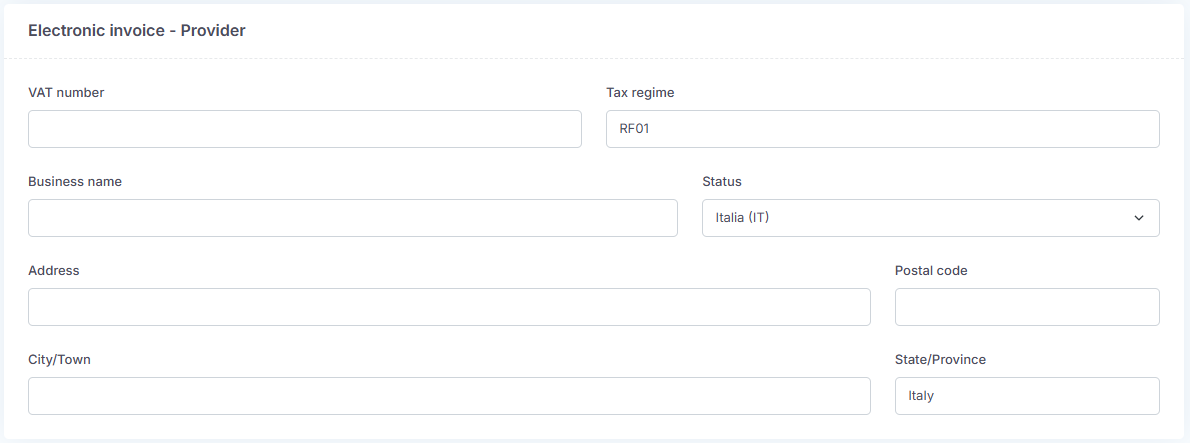
Note: this section will appear only if the e-commerce is enabled.