


Import
The Import feature allows users to bulk upload learners, groups, and instructors by uploading a CSV file or using the preformatted file provided by the system template.
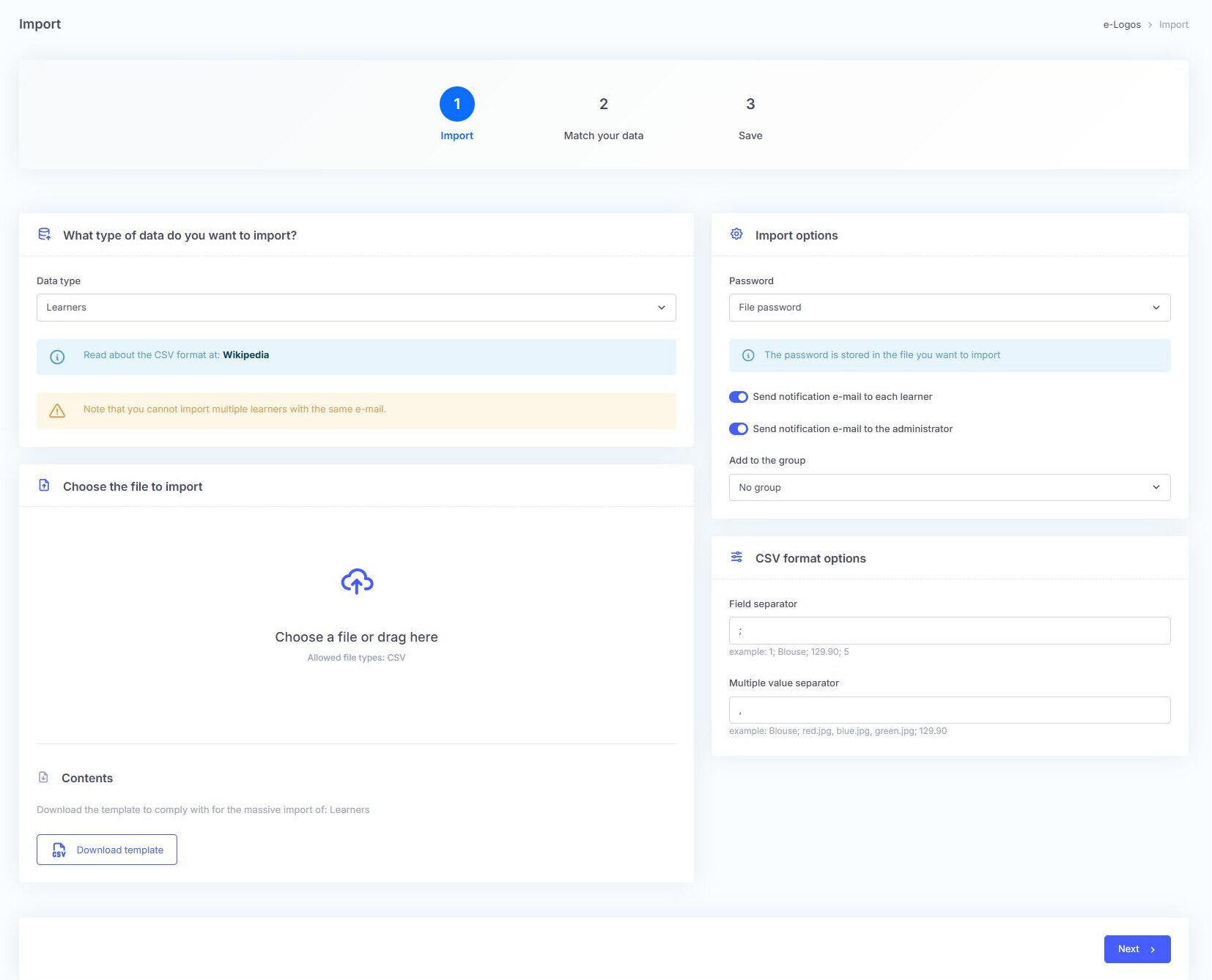
How to proceed with the import
In the “Data type” field, select the type of data to import: “Learners”, “Instructors”, or “Groups”.
In the Choose file to import section, upload a compatible .csv file. Users can click or drag the file into the indicated box.
Note: it is not possible to import multiple users with the same email address.
Import options:
- Password:
- same password for all learners;
- random password;
- password contained in the file, by adding a specific column to the CSV file.
- Send notification email to each learner: useful for notifying the learner that they have been added to the platform.
- Send notification email to administration: useful for notifying the administrator that a new learner has been added to the platform.
- Add to group: select an existing group to automatically add the imported learners.
CSV format options:
- Field separator: enter the symbol that separates the columns in the CSV file. Each field represents a different piece of information, such as first name, last name, email, or password;
- Multiple value separator: enter the symbol that separates multiple values within the same field. This is used when a single column contains multiple items, such as multiple groups or categories).
We recommend not changing the existing values.
Once the settings have been configured, click Next to proceed with data matching.
Configure data matching
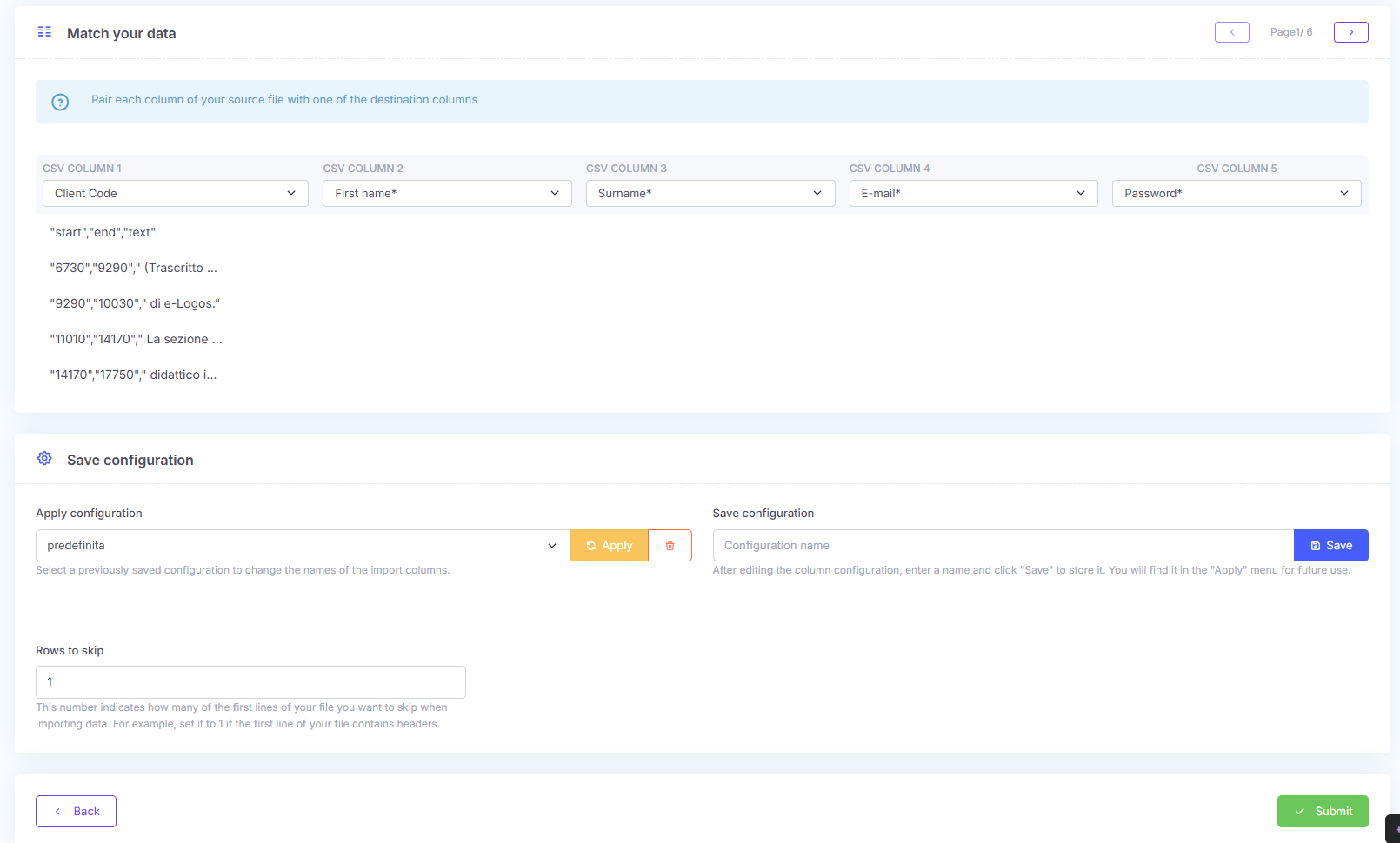
Each column in the CSV file must be matched to a platform field by selecting it from the drop-down menu at the top of each column. Mandatory fields are marked with an asterisk (*) and include:
- First name*;
- Last name*;
- Email*;
- Password*, if required based on the selected option.
A column can be ignored by leaving the matching field empty or selecting “Ignore this column”.
When importing learners from a CSV file, e-Logos allows users to save a data matching configuration so they do not have to repeat the association between file columns and platform fields each time.
How to save a configuration
- In the “Save a data matching configuration” section, enter a name;
- Fill in the “Rows to skip” field by entering the number of rows to ignore at the beginning of the CSV file. Usually, this is set to 1 to skip the first row containing headers such as First name, Last name, Email, etc.;
- click the Save button;
- In the “Load a data matching configuration” section, select the name from the drop-down menu;
- Click the green icon with the downward arrow: the saved settings will be automatically applied to the Match your data section, filling in the fields based on the latest configuration.