


Alerts
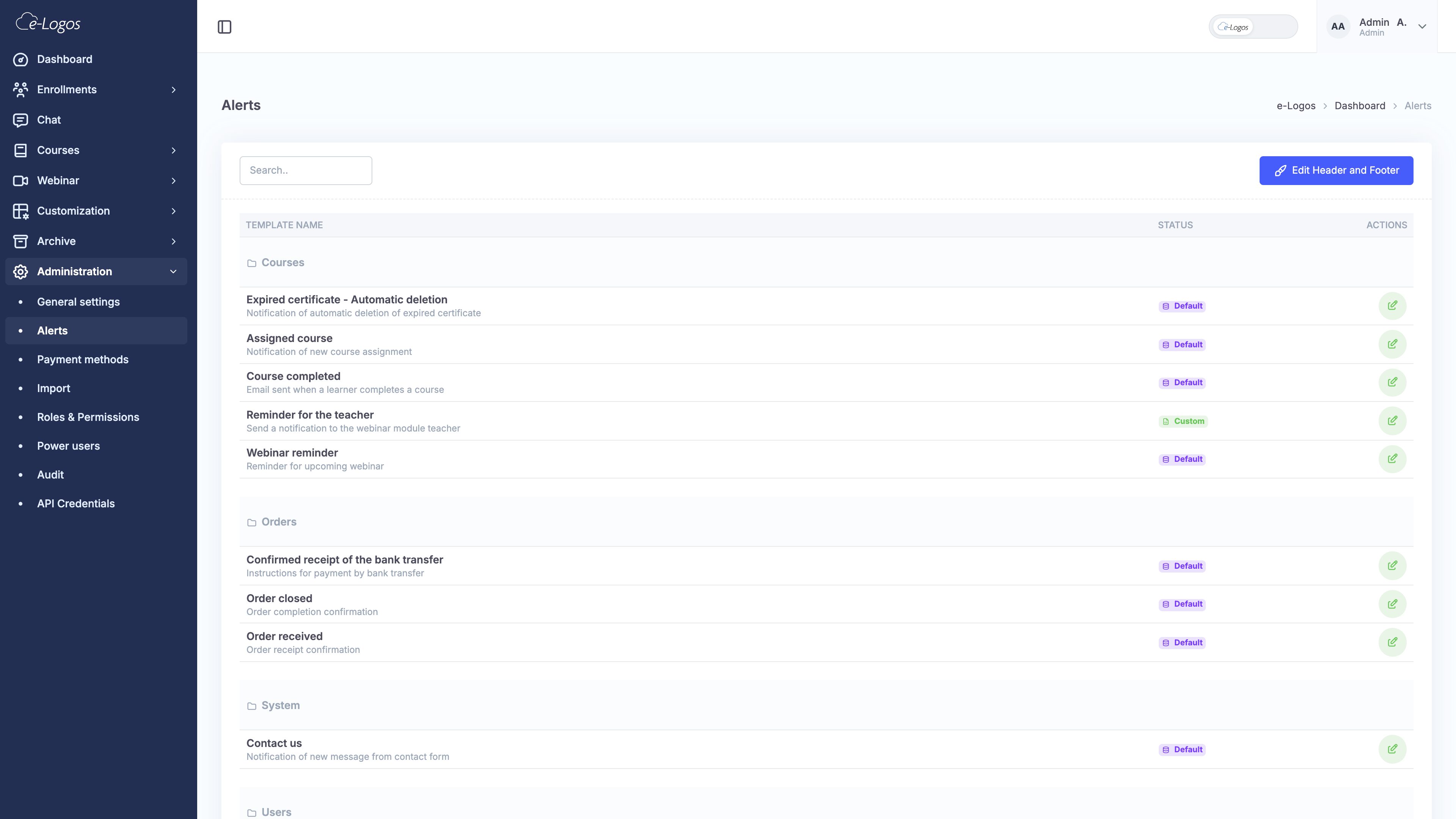
The Alerts section allows administrators to manage and customize the templates of the emails sent automatically by the e-Logos platform. Admin can edit the content and style of emails sent in the following cases:
- expired certificate;
- course assigned and completed;
- various reminders, such as instructor reminders and webinar reminders;
- orders, such as purchase confirmation and order received;
- welcome communications, such as generic welcome, new admin, new instructor, new learner, and password reset.
Editing headers
By clicking Edit header and footer, the administrator can configure the elements common to all emails sent by the platform, namely the header and footer.
The “Email header” box allows users to customize the top section of the emails:
- Use platform logo: enables or disables logo display;
- Background color: allows users to select the header background color, either by entering a hexadecimal code or by clicking the color selector;
- Header text: field for entering a custom message.
The “Footer” box allows users to configure the final section of the emails:
- Footer content: free text, such as hashtags, contacts, or legal notes;
- Text color: allows users to choose the footer text color;
- Background color: allows users to choose the footer background color.
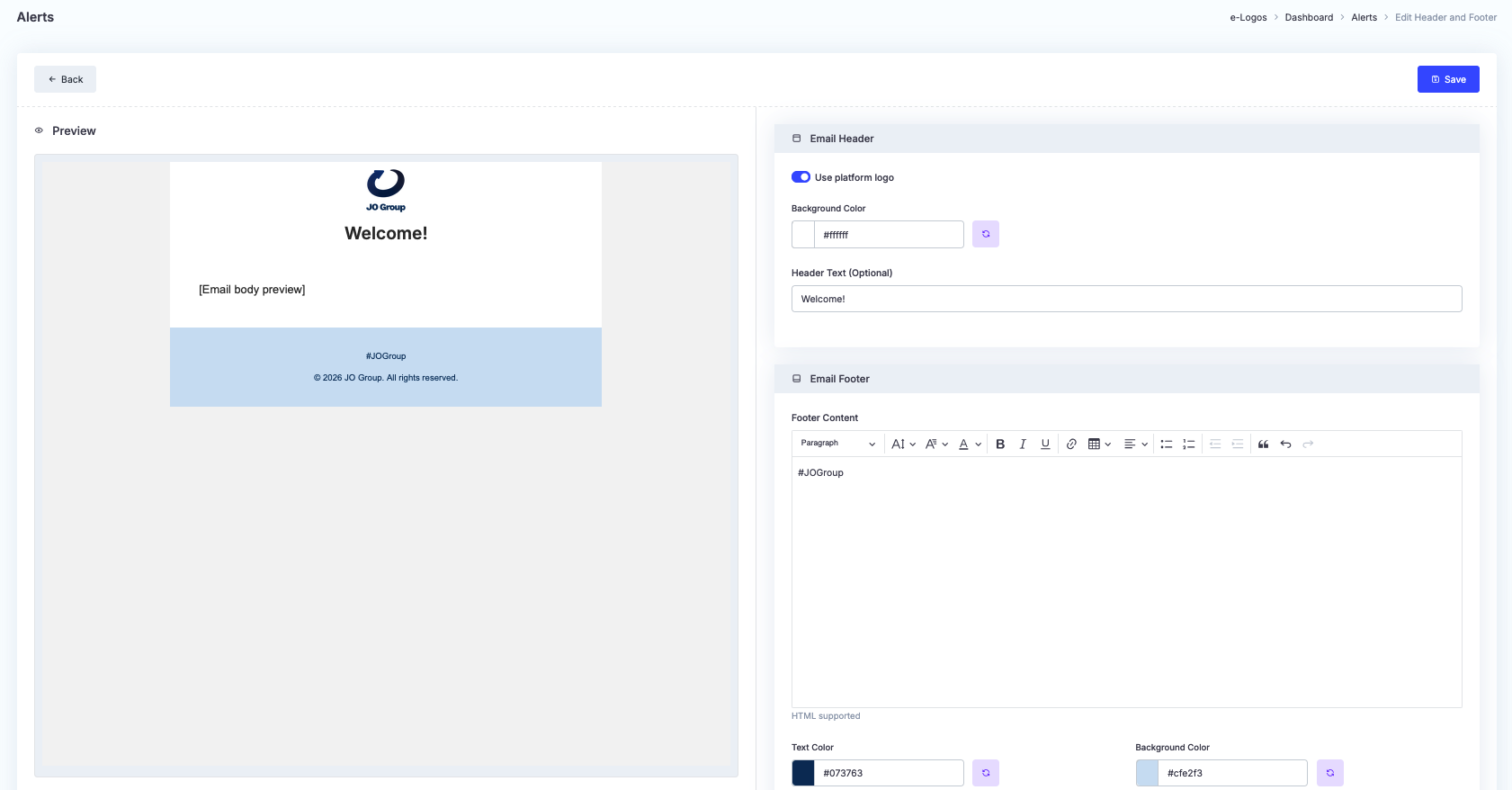
Click Save. This way, even without editing the content of each individual template, every email sent will include the selected header and footer.
Editing a template
By clicking Edit next to a template, users can customize the template for the individual event. The header and footer are edited globally in the section described above.
Specifically, users can edit:
- Text color: selection of the text color;
- Background color: selection of the email body background;
- Dynamic fields: clickable buttons for automatically inserting dynamic variables, such as first name and last name, email, and password.
These variables will be replaced with the user’s actual data when the email is sent.
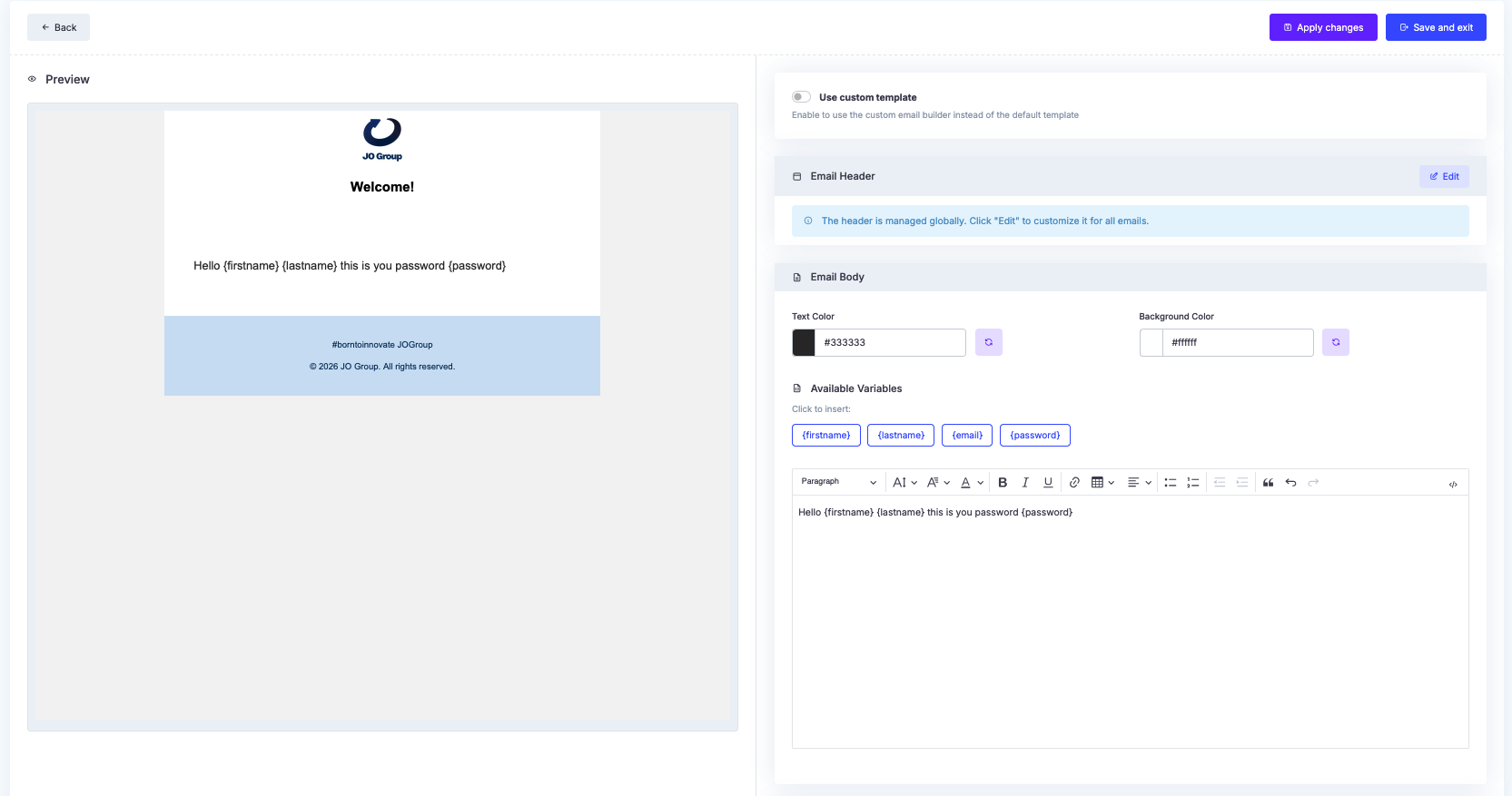
Admin can edit the template while choosing to continue using the standard template. To apply it to all communications for the event, enable “Use custom template”.
Click Apply changes or Save and exit.