


How to create a certificate
From the main screen, simply click New certificate and enter a name. An editor will open, where users can create the certificate from scratch by adding the desired elements and background.
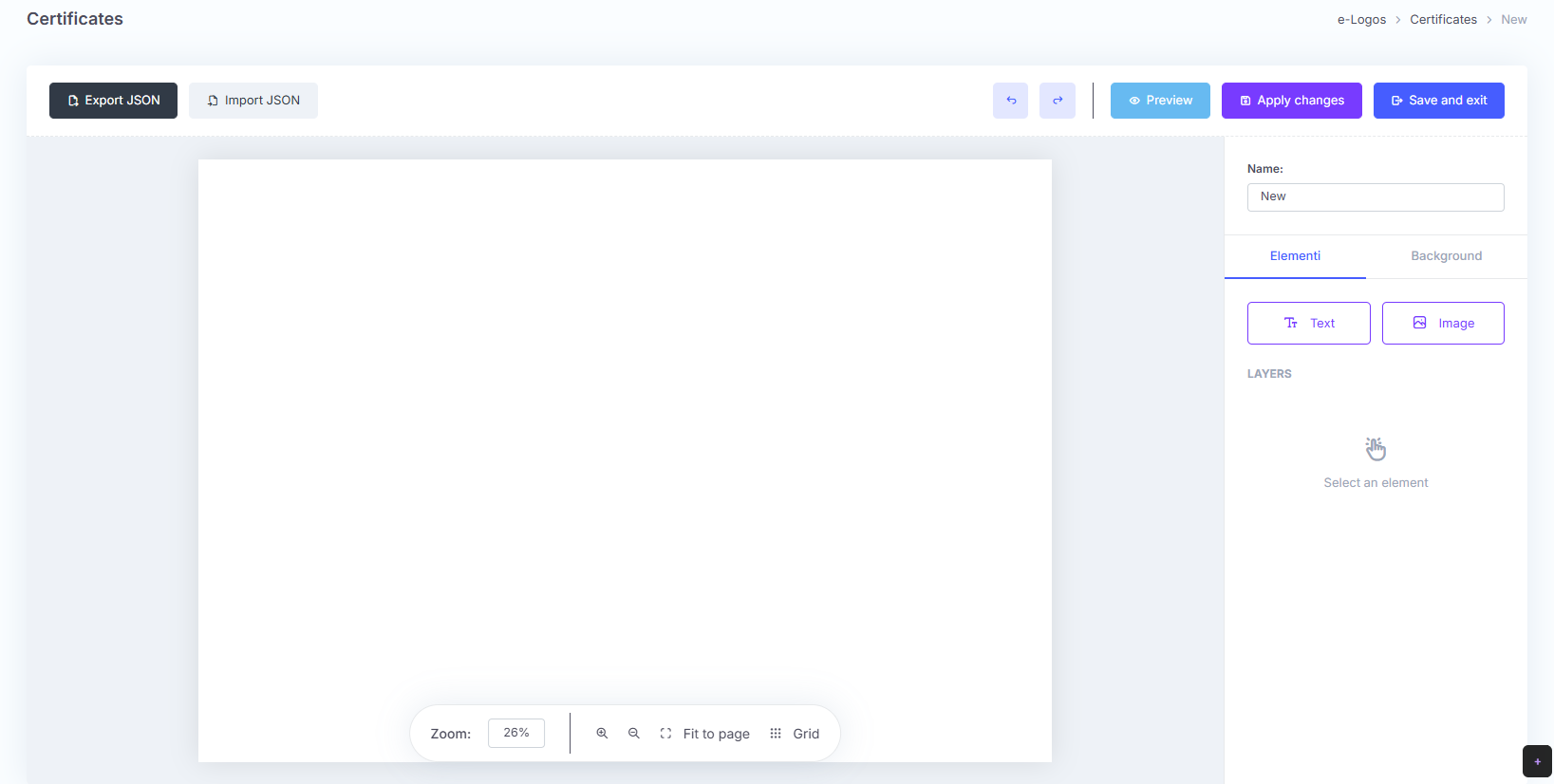
Using the buttons at the top left, users can:
- export the JSON: a file containing the certificate structure will be downloaded;
- import the JSON: users can upload a file containing an existing certificate structure;
- undo or redo actions.
On the right, by clicking the Preview button, a tab will open showing a preview of the certificate.
How to add a background
Click Background and choose the layout you prefer: horizontal or vertical. If you do not want to upload a background image, you can choose a color from the box or enter the hexadecimal code (HEX).
Looking for a specific color? We recommend using a tool such as Adobe Color Wheel.
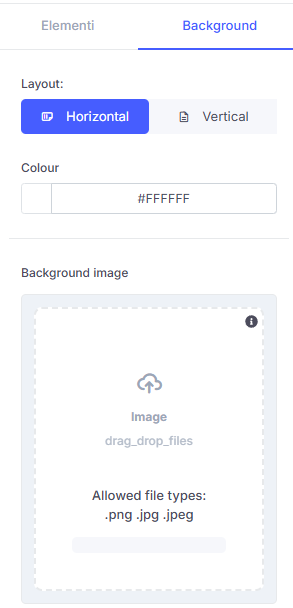
You can upload an image in .png, .jpg, or .jpeg format.
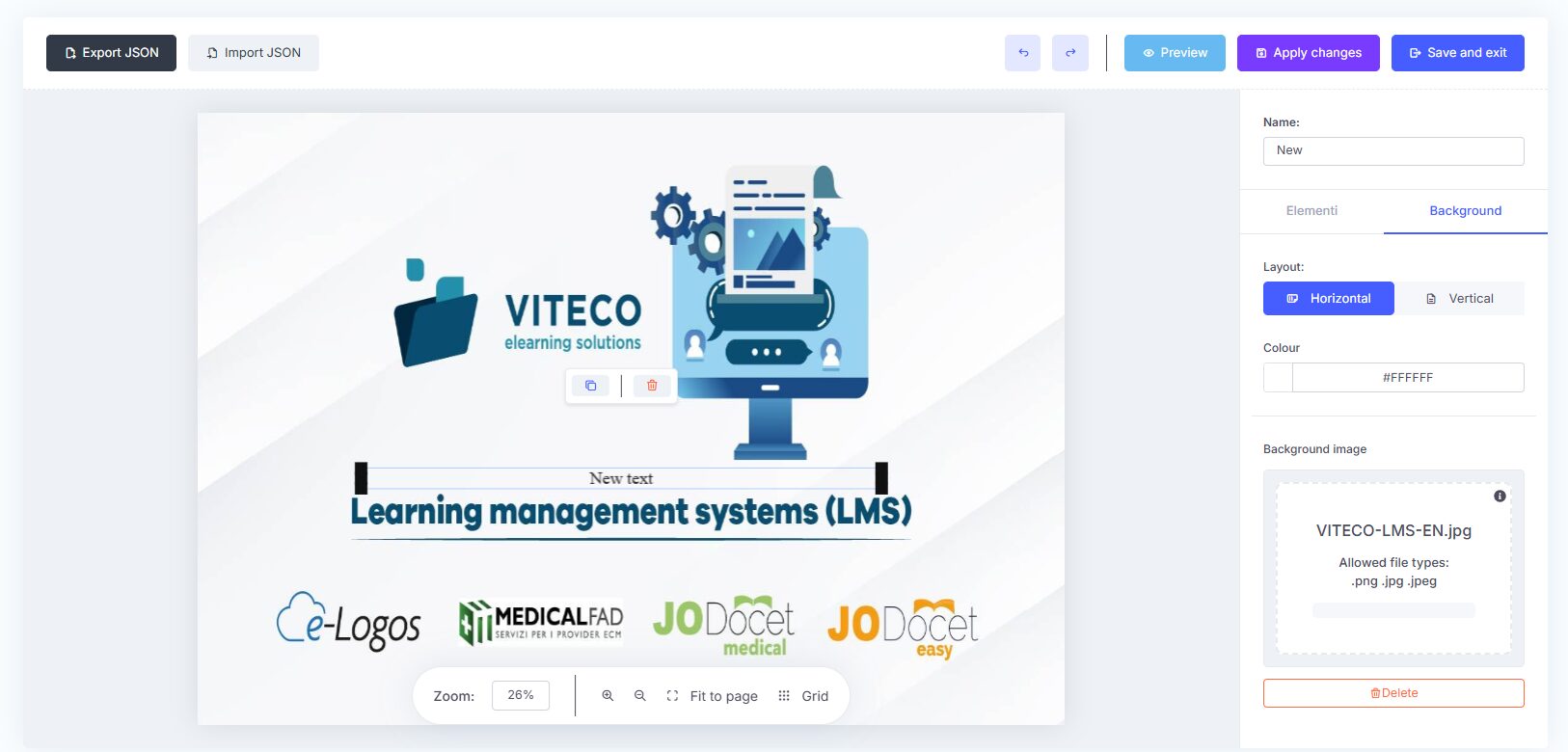
After uploading it, you will see a preview of the certificate with the background.
Need to check a detail? Click the magnifying glass icons to zoom in on the certificate; click Fit to page to reset the view.
How to add text
Using the Elements section, users can add text and images to the certificate.
By clicking Text, they can manage its properties:
- font;
- font size;
- alignment;
- color.
Dynamic fields are special elements within the certificate that automatically update with specific information. For example, instead of manually entering the participant’s name or the date, users can insert a dynamic field that will automatically be replaced with the correct data each time a certificate is downloaded.
Different dynamic fields are available for the learner, the course, and the certificate.

How to add images
By clicking Image, users can upload an image to add to the certificate. The image can be resized, moved, cropped, and made more or less visible.
It can also be duplicated, and users can use the Grid function at the bottom right to position it precisely.

Satisfied? Click Save and exit.
Want to edit the certificate later? No problem! Certificates can be edited as long as there is no active learner enrolled in the course.