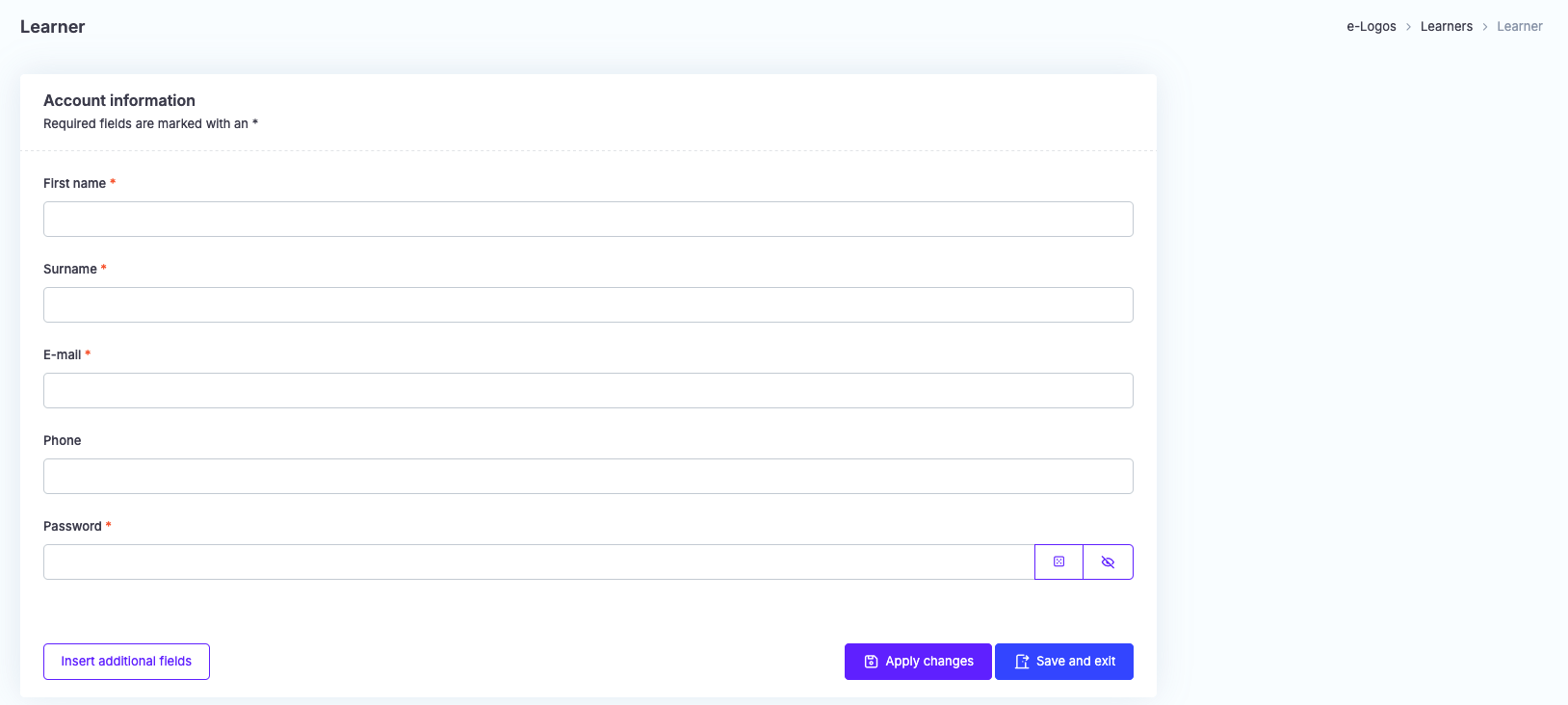
The learner will receive an enrollment confirmation email with their login credentials.
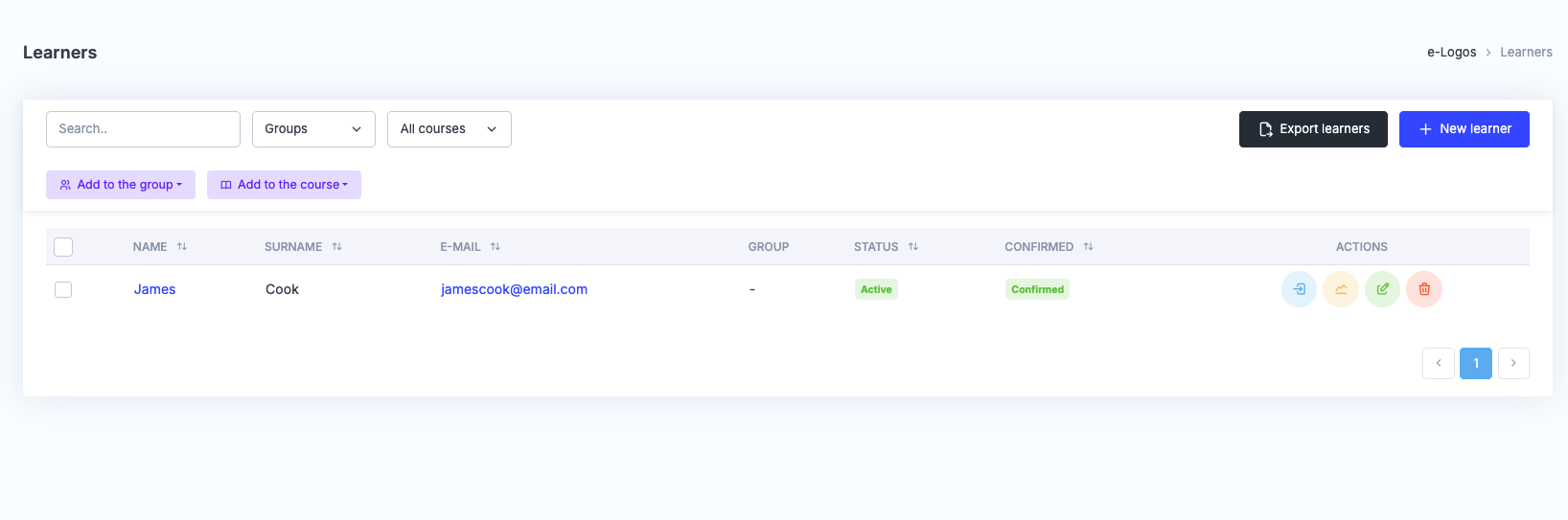
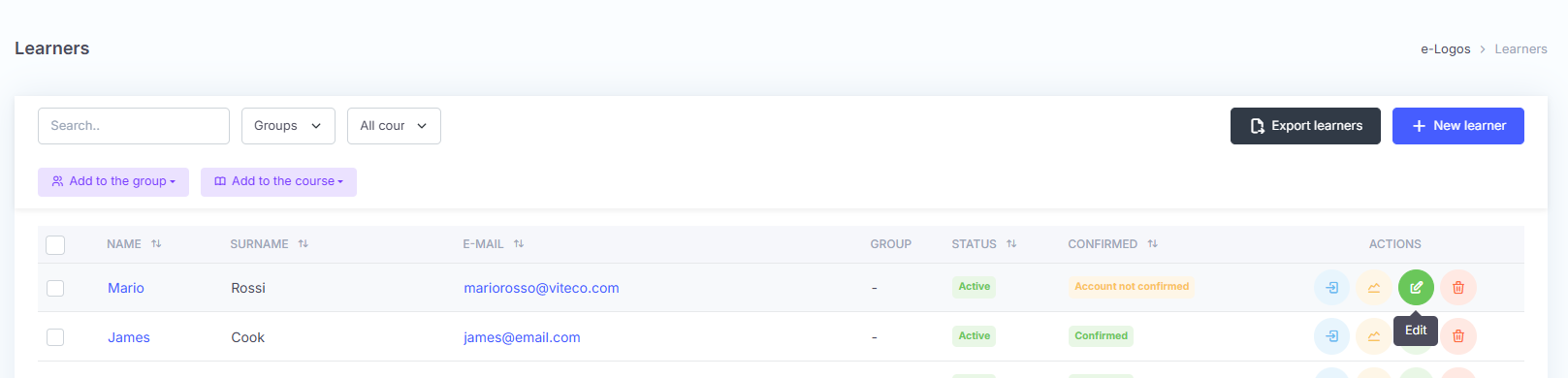
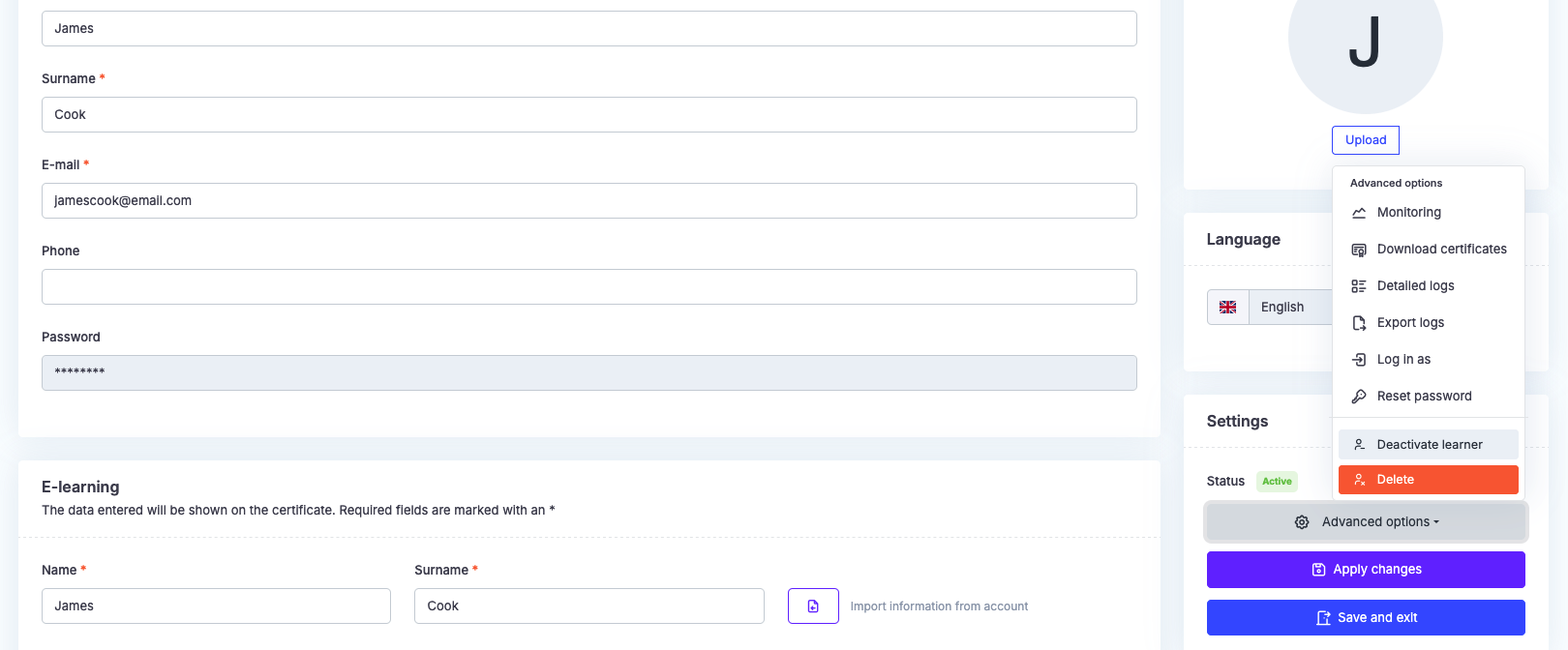
By clicking the green Edit button, users can view and edit the basic information that was added. By clicking Advanced options – Reset password, the platform generates a random password, which is sent to the learner by email. Using the Log in as button, the administrator can access the platform and view the learner’s profile.
How to change the learner status
Within the Learners section, users can make changes to the learner’s status. When the learner is “Active“, admin can click the item to deactivate them without deleting their profile; the “Confirmed” status is active by default if the learner is created from the backend. If the learner registers independently, the status will be “Unconfirmed account” and will change to “Confirmed” as soon as the user confirms their enrollment by email.