


Dashboard
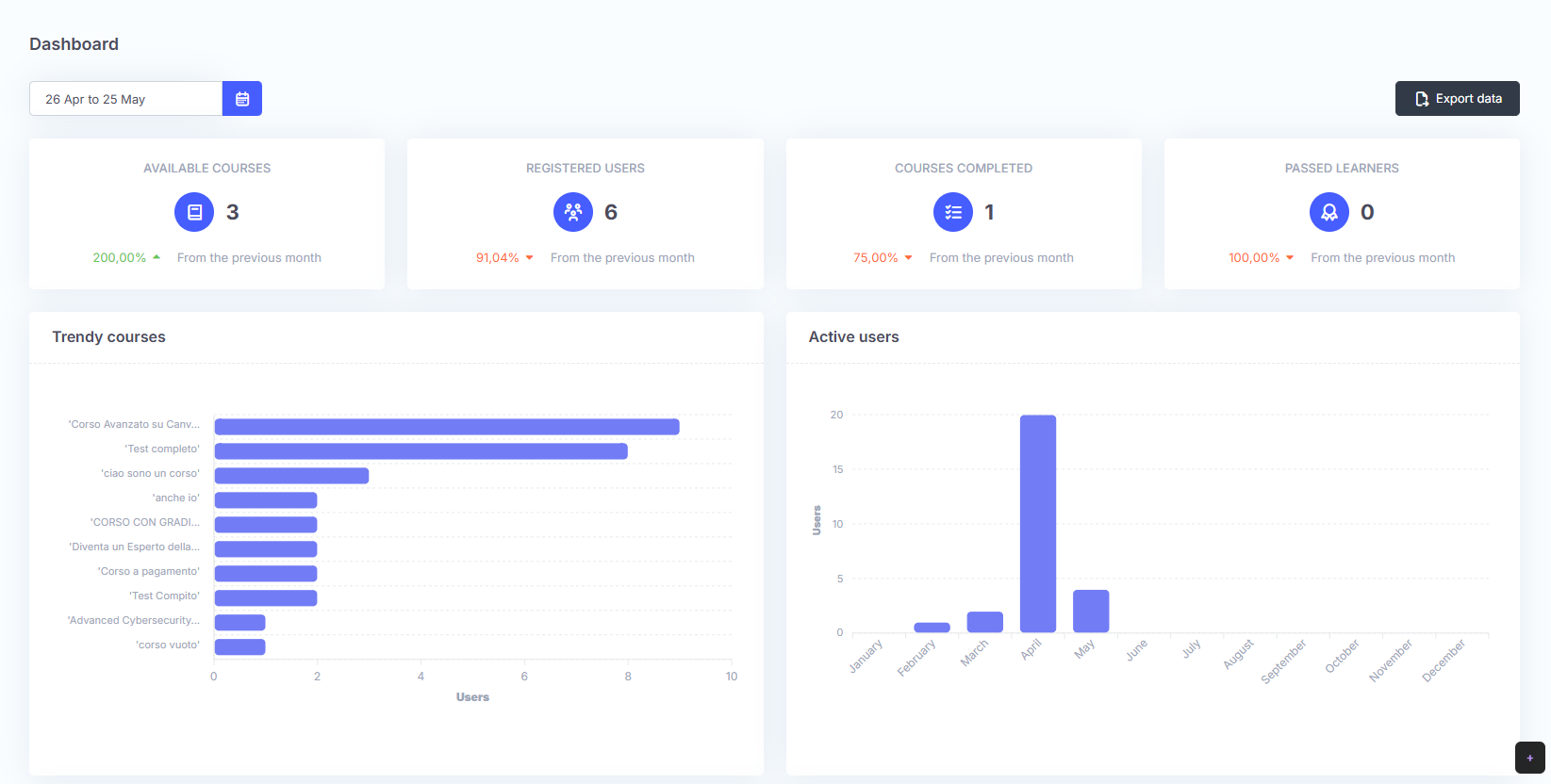
After entering their credentials, manager accesses the Dashboard. This screen displays various details on training progress for a specific period, which can be selected using the date range. The information can be exported in CSV, Excel, and PDF format using the Export data button.
The following information are available:
- number of active courses;
- number of registered users;
- number of completed courses;
- number of learners who passed.
By clicking the profile item at the top right, users can access additional features:
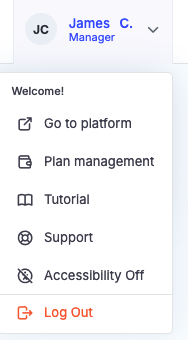
- Go to platform: allows users to view the user side of the platform. This is useful when changes are applied and the user wants to see the result;
- Plan management: provides access to billing information for the e-Logos subscription;
- Tutorial: allows users to view all useful resources for using e-Logos, such as video tutorials and the user manual;
- Support: provides access to the help desk to report issues;
- Accessibility: by activating Accessibility mode, the platform will use softer colors, increase contrast, and highlight the borders of the various sections.
Menu
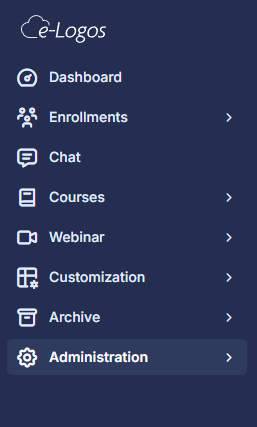
The platform features are organized into the following sections:
- Enrollments: opens a submenu with Orders, Learners, Groups, Coupons, and Reports. The Orders, Coupons, and Reports items are available only if the administrator has enabled e-commerce;
- Chat: an optional feature that allows the course instructor to interact with learners;
- Courses: opens a submenu for managing Categories, Certificates, and Courses;
- Webinars: opens a submenu where users can view Scheduled webinars and access Recordings;
- Customization: opens a submenu for customizing the front-end, including Pages, References, and Themes and colors;
- Archive: an optional feature that opens a submenu for sharing and managing Files and organizing them into Categories;
- Administration: allows users to configure the General settings, manage VAT for different countries, customize email templates through Alerts, configure Payment methods, automatically enroll instructors and learners using the Import feature, edit Roles and permissions, and manage Power users. Through Audit, users can monitor the actions performed on the platform, while API credentials provides access to a technical tool for integrating third-party services. Find out how to use the APIs by clicking here.